Home Energy Monitor Series – Internet of Things

Recently I started an Internet of Things series on my experiences installing, using and analysing data from a smart electrical meter.  This included a BC Hydro smart meter, Eagle monitoring gateway from rainforest automation, and a cloud-based analytics service from Bidgely.

I’ve collated all the posts on the topic for you below.  More will be added as I write them.  Enjoy!


Graph showing electricity usage from an Eagle home enery monitor IoT Day 1: Home Energy Monitoring (3/27/2015) -   In my next series of blog posts we explore an Internet of Things topic – Home energy monitoring – from a first person perspective.  Join me as I install, use and hack a monitor (and related cloud services) in my new home. This is part 1 of a series of posts about the Internet of … Continue reading IoT Day 1: Home Energy Monitoring
Bidgely Energy Monitor Dashboard IoT Day 2: Cloud Services for Energy Monitoring (3/28/2015) - Energy monitoring isn’t only about knowing what’s happening right now, but also understanding what happened historically.  Often that includes knowing not just what was happening but also when and why.  Enter cloud services for energy monitoring.  They range from simple charts and graphs to predicting your usage over time – essentially storing, analysing and enriching your … Continue reading IoT Day 2: Cloud Services for Energy Monitoring
Eagle energy monitor current usage screen IoT Day 3: Viewing data on the Eagle Energy Monitor (3/29/2015) - The Eagle energy monitor from Rainforest Automation is a very handy device.  It reads the wireless signal from my electricity meter and makes it available through a web interface – both a graphical environment and a RESTful API.  In this post we look at the standard graphical screens and the data download option. Next time … Continue reading IoT Day 3: Viewing data on the Eagle Energy Monitor
Bidgely Energy Monitor Dashboard - Usage IoT Day 4: Bidgely Cloud Energy Monitor Dashboard (4/5/2015) - After a week of collecting smart meter readings, I’m now ready to show results in a cloud-based energy monitor system – Bidgely – complete with graphs showing readings, cost and machine learning results breaking down my usage by appliance. This is part 4 of a series of posts about the Internet of Things applied to Home Energy … Continue reading IoT Day 4: Bidgely Cloud Energy Monitor Dashboard


IoT Day 4: Bidgely Cloud Energy Monitor Dashboard

After a week of collecting smart meter readings, I’m now ready to show results in a cloud-based energy monitor system – Bidgely – complete with graphs showing readings, cost and machine learning results breaking down my usage by appliance.


Bidgely Energy Monitor Dashboard - UsageThis is part 4 of a series of posts about the Internet of Things applied to Home Energy Monitoring.  I have a Smart Meter from BC Hydro, an Eagle energy monitor and various cloud apps helping me understand it all.


See my post from Day 1 – getting started or Day 2 – connecting to cloud services – Day 3 – viewing data


3 Value Added Parts to Bidgely

In this post I’ll show you the three parts of Bidgely that I’ve found most helpful:

  1. Usage dashboard
  2. Cost dashboard
  3. Appliance breakdown (best for last!)

Usage Dashboard

Bidgely Energy Monitor Dashboard - Usage
Bidgely Energy Monitor – Usage Dashboard

The main part of the dashboard includes the energy usage during a given period of time – in detail and an overall amount. The usage dashboard is chosen by selecting the lightning bolt symbol in the top right.  On the top left you change the time period for the dashboard.  Changing it to Billing Cycle or Year will summarise the data into larger groups of time – days or months.

In the 24 Hour time period, the chart shows the amount of kilowatts used in 5 minute time periods.  You can mouse-over a point and get the detailed information.  This view helps you to understand what your energy usage is like and can help you identify any usage you didn’t know about.

For example, the small spikes throughout the middle of the night were confusing at first, but I figured out that it was the refrigerator running every hour or so.  This leads me to know that to reduce that usage I could get a more efficient fridge or take other actions such as placing some jugs of water in the fridge to help retain the cold better.  We’ll try that another time and see what effect it has.

Cost Dashboard

Bidgely Energy Monitor Dashboard - Cost
Bidgely Energy Monitor – Cost Dashboard

Very similar to the usage dashboard, the 24 Hour view shows the cost of the usage summarised by hour, just as the hydro company will do their billing.  This screen is turned on by the $ symbol button in the top right.  Mouse over the chart shows more details, include any different Tier usage your utility may have in place.

Appliance Breakdown

Now here is where the real secret sauce of Bidgely gets applied.  Showing charts of usage and cost isn’t rocket science, but applying machine learning to gaining further insight into your usage/costs is really useful.  Let’s look at an example in this screenshot.  Notice the bottom left shows a breakdown of usage by appliance.  When you select one, it shows it in the chart and gives a summary % in the bar below the chart:

Bidgely Energy Monitor - Appliance Breakdown
Bidgely Energy Monitor – Appliance Breakdown


This breakdown magically appears when their algorithms and machine learning analysis start to see patterns of usage in your data.  Just like I could instinctively see my refrigerator usage, data analysis can detect similar patterns and make certain assumptions.  For example, my heating system draws 1.5kW, so when there is a 1.5kW increase in usage, the assumption can be that my heater turned on.  That’s a fairly simple example that isn’t going to gain any venture capital funding.

Things get way more interesting when engineers can determine what appliances are running simultaneously.  When a second appliance begins running, say my fridge, at another 0.8kW how can it figure this out?  This takes a combination of factors – additional guestimates about typical fridge usage, as well as frequency and duration – together these produce a super smart system that can determine these factors.

The only downside I see so far is that this analysis happens after-the-fact.  The initial analysis took about 3-4 days, then they emailed me to tell me they had discovered my “always on” usage, heating system, fridge and clothes dryer.  I’m super curious if it will also find my water heater and another space heater I have.  Time will tell.

Wish List

Real-time Analytics

I’m also curious if it can become faster at identifying these components.  Not an easy feat but I’m sure it’s on their TODO list already.  [Perhaps they need a higher performance analytic platform like we produce at Actian!]  The closer to real-time that any analytics can get, the better for everybody and the wider the lead Bidgely will have on its competitors.

Manual Training

The other aspect to Bidgely I’d like to see is more ability to manually train their model.  My premise here is that the user has innate knowledge about what is going on that a system might never really understand – this should be taken advantage of.

I mentioned in an earlier post that their Appliance Analyzer app helped train the model, but I’m not so sure now.  I think it was only to give you a rough idea of your usage in a manual way (which is what they said it did).  But it really should be used to train my house and could be done two ways.

First, just like their little wizard does – you identify what device you are using, select Start, turn it on and it tells you when it sees the spike – done.  Second, show the current usage and allow the user to select from a checklist what is currently running.

Now, using all of that data in real-time on multiple devices that turn on/off over varying durations of time – that’s still the secret sauce this team brings to the table.  I look forward to seeing how they move forward as they continue to develop.  It is sure interesting so far!

Offline Updates

I prefer to power down my computer equipment in the evenings, though I keep my energy monitor running.  When I power it back on it the morning Bidgely won’t update with the data collected earlier.   This is not a unique problem to Bidgely of course, other cloud providers have the same issue, but my Eagle does support downloading older data – so hope they could take advantage of this sync/refresh approach in the future.

IoT Day 2: Cloud Services for Energy Monitoring

Energy monitoring isn’t only about knowing what’s happening right now, but also understanding what happened historically.  Often that includes knowing not just what was happening but also when and why.  Enter cloud services for energy monitoring.  They range from simple charts and graphs to predicting your usage over time – essentially storing, analysing and enriching your raw data.
In this post I review two cloud services that I’ve tried so far and show you what you get from them.


This is part 2 of a series of posts about the Internet of Things applied to Home Energy Monitoring.

See my posts from Day 1: getting started – Day 3: main charts and analytics in the dashboard


Cloud Service Options

The rainforest automation Eagle unit I have comes pre-configured with support for a few different cloud services: Wattvision, BuildingOS, Bidgely, BlueDot.  (Ignore the Powereye entry for now, that’s just me mucking around).

Form showing Eagle energy monitor - configuring cloud services options
Eagle monitor cloud service configuration options

To enable a service:

  1. Create an account on the website for one of the services (links above)
  2. Provide them with your Cloud ID as shown in the config screens on the Eagle
  3. Select the cloud provider in the Eagle settings and choose Set Cloud
  4. Wait – Give it a minute to get started.  It will restart some stuff on the Eagle device
  5. Visit the service provider website to see what’s going on

Screenshot showing a setup form for the BlueDot system
BlueDot service config screen

Bidgely energy monitoring config settings form
Bidgely energy monitoring config settings

Behind the Scenes

What exactly happens when you choose a cloud provider in the Eagle settings?

When one is chosen, the Eagle device will transmit the energy data to the provider.  Along with your device identifier, with every reading it generates a data packet for the provider to read and use in its system.  The system detects that it’s your data and makes it available to your account.

The bonus is that this results in you essentially having a copy of the data available elsewhere, on another server.  What that server does with it after is its own business.  Each provider has their own website tools and/or mobile apps that access your data and the results of their services.

So don’t expect anything on the Eagle screens to change when these are configured, it’s only sending a copy of the data and you have to go to those other sites/apps to get the added value.

As an aside, you could even set up your own server and stream your data to it!  More on that in the future.

BlueDot

BlueDot was the first service I tried.  It provides a very basic set of features, pretty much all being shown in this chart summary screen.

BlueDot Energy Monitor Dashboard
The charts seem to show the data in 15 minute increments.

I haven’t run it long enough to really get full value from the service.  At the bottom of the screen there is a My Recommendations section.  As it analyses more data it will add value in this spot.  They explain on their website:

Our cloud-based servers constantly analyze your home energy usage and use this information to create personalized money-saving recommendations and special offers. These recommendations are sent to the “Just For You” page in your BlueDot web browser or smartphone application.

Sounds good to me!  I hope to give it a more thorough test in the future.

If all you want is a simple chart right out of the box, this was very easy to get started with.

Bidgely

Most of the past day I’ve been running with the Bidgely service, so I’ve now got 24 hours worth of data to show.

Bidgely Energy Monitor Dashboard

The dashboard is rich with information.  There are also two chart views, one showing usage (“demand”) and one showing an energy billing estimate.

During the configuration stage you tell it what utility you are getting your energy from and it will config the rate.

The most interesting part of Bidgely is the application of data analytics.  To start with, they have a tool that helps you train their system and to give you an estimate of how much it costs you to use an appliance.  You can use the mobile app or the website to tell it, for example, that you are going to turn on your air conditioner.  The service will watch for a few seconds or a minute and identify what kind of spike that device creates.

Bidgely Appliance Detective Mode

It is actually fun to go through their list and activate all the appliances you own!

The list is not comprehensive yet but I expect it will become longer in the future.  Based on comments in their community forums, users also want to be able to track other appliances or even their custom ones.

Bidgely’s main focus is not just on showing the data, but on identifying which appliances use what amounts of energy.  You can see this in the dashboard screen in the centre-left.  I called my system Whole House.  They automagically created a sub-group called Always On – that’s the baseline usage that never seems to go away. I’ll be attacking those energy vampires in the future too!

As they collect more data, my appliances will start to show up here as well.   That will be really cool.  I’m not sure how long it will take, but sounds like it might take a month or two before that happens.

At the end of the day I’ll be able to see which appliances use the most power and then adjust accordingly.

Summary

So far I haven’t made any huge discoveries or conclusive decisions for how to save on energy.  However, I did realise that the water heater is a secret sucker – it is so far out of sight and mind that I didn’t even think about it until I saw a strange plateau spike up at 11pm – when I had already shut down all my appliances and after I had showered before bed.

My space heaters are the largest culprits so far and next is the oven.  I figured this out just by looking at the times and watching what was going on around me.

At this pace I’ll soon be able to have my own, personal, conclusive evidence of which is better for heating tea – microwave or stove top.  Then everything will be right in the world!


Stay tuned for a review of more cloud services in my next post of this series.  Find me on Twitter to share more ideas or leave a comment to tell me what other areas you would like to learn about on this topic.

Drinking from the (data) Firehose of Terror

Between classic business transactions and social interactions and machine-generated observations, the digital data tap has been turned on and it will never be turned off. The flow of data is everlasting. Which is why you see a lot of things in the loop around real time frameworks and streaming frameworks. – Mike Hoskins, CTO Actian

From Mike Hoskins to Mike Richards (yes we can do that kind of leap in logic, it’s the weekend)…

Oh, Joel Miller, you just found the marble in the oatmeal!   You’re a lucky, lucky, lucky little boy – because you know why?  You get to drink from… the firehose!  Okay, ready?  Open wide! – Stanley Spadowski, UHF

Firehose of Terror

I think you get the picture – a potentially frightening picture for those unprepared to handle the torrent of data that is coming down the pipe.  Unfortunately, for those who are unprepared, the disaster will not merely overwhelm them.  Quite the contrary – I believe they will be consumed by irrelevancy.

If you’re still with me, let me explain.

Play video: Firehose

I agree that the tap has been turned on, maybe not at the full blast of power or under maximum control, yet the data is coming and already well beyond a trickle.  The helter-skelter implementations of big data solutions out there has, perhaps, created more of a turbulent blasting firehose than a meandering stream of flowing data.  And this is only the beginning.

Success is Still Newsworthy

We are still at the stage where designing a (successful) enterprise system built around streaming data, for example, is big news.  Why is it news?  Because building is harder than merely planning, especially when new open source projects continue to push us beyond the bleeding edge.  New tools are helping us see how we can handle more data and find more value, but they are also making the pool of data so much larger that the tools themselves are often irrelevant by the time they are adopted.

For example, MapReduce was awesome, until it began to be so widely adopted that its limitations became apparent.  It’s like finding the marble in a sandbox filled with oatmeal – not easy, but when you find it, you’re a winner!  Oh, the prize is a fierce typhoon of even more data coming your way.  Congratulations! (Sorry you didn’t prepare for that.)

So where does this leave organisations that have no ability to handle more than a trickle of data?

It’s a win or lose scenario – either you can do something about it or you can’t.  As software developers or data managers we won’t be judged along some smooth gradation of skills and capabilities.

We’ll be judged against a checklist
Yes or no.
Pass or fail.
Win or lose.
Firehose or … an icky pail to hide in the closet.

Data’s Need for Speed

Why is it a pass/fail scenario?  Consider your car – is it successful when it mostly starts in the morning?  Never.  Anything beyond fully starting is a complete failure because that is what it is designed to do.

I argue that today’s data streams are being designed to handle data at maximum velocity.  Sure many services aren’t producing millions of records per second, but as we gear up with the latest toolsets, we make the tools themselves hunger and thirst to get more and more data into their greedy little hands.  Feed the beast – or ignore it at your peril.

Systems today are designed to run at full throttle – 100% – all out – maximum overdrive. None of us would like to have pay for premium broadband and find that we only use 10% of our bandwidth.  Likewise, our systems are waiting for us to crank up the volume to see what we’ll do next.

Our data economy inherently wants to run at maximum but much of the old plumbing needs upgrades to function at that rate.  You’d be irate if the fire department ran their hoses at 10% power when trying to douse your burning home.  However, if they told you later that max pressure would burst the old hoses and you’d have no water, then you might be a little more appreciative.

Patch up those hoses so they are tested and ready.  Buckle up the survival suit.  Start digging through the oatmeal and open wide.  Be forewarned – if you are not searching for the marble, you can never find it.  If cannot find it, you’ll be sent home empty handed.

—-

p.s. If you don’t win, I highly doubt you’ll even receive a lousy copy of the home edition.


Neo4j Cypher Query for Graph Density Analysis

Graph analysis is all about finding relationships. In this post I show how to compute graph density (a ratio of how well connected relationships in a graph are) using a Cypher query with Neo4j. This is a follow up to the earlier post: SPARQL Query for Graph Density Analysis.

Installing Neo4j Graph Database

In this example we launch Neo4j and enter Cypher commands into the web console…

  1. Neo4j is a java application and requires OracleJDK 7 or OpenJDK 7 to be on your system.
  2. Download the Community Edition of Neo4j.  In my case I grabbed the Unix .tar.gz file and unzipped the files.   Install on Windows may vary.
  3. From command line and within the newlycreatedneo4j-community folder, start the database:
    1. bin/neo4j start
  4. Use web console at: http://localhost:7474 – the top line of the page is a window for entering Cypher commands.
  5. Load sample CSV data using a Cypher command – I cover this in a separate post here.  Be sure the path to the file is the same on your system, matching where you saved the CSV files to.

Quick Visualization

Using the built-in Neo4j graph browser, you can easily see all your relationships as nodes and edges.  For a query, return results that include all the objects:

MATCH (p:Person)
RETURN p

Friends graph sample viewed in Neo4j

Compute Graph Density

Graph Density requires total number of nodes and total number of relationships/edges.  We do them both separately, then pull them together at the end.

Compute the number of unique nodes in the graph

MATCH (p:Person)
RETURN count(p)

count(p)
21
Returned 1 row in 49 ms

This tells us that there are 21 people as Subjects in the graph.  (I’m not sure how this differed from the 20 I had in my other post – perhaps part of the header from the CSV came in?)

Therefore, a maximum number of edges between all people would be 21² (we’ll use only 21×20 as a person might not link to themselves in this example).

Compute the number of edges in the graph

Here we only select subjects that are “Person” and only where they have a relationship called “HAS_FRIEND”.

(The “p:”, “r:” and “f:” prefixes act like the “?…” variables references in SPARQL – you set them to whatever you want as a pointer to the data returned from the MATCH statement.)

MATCH (p:Person)-[r:HAS_FRIEND]-(f:Person)
RETURN count(DISTINCT r)

count(DISTINCT r)
57
 When we defined the data from CSV, we set up a relationship that I thought would be just one-way.  But you can see, if you don’t provide the DISTINCT keyword, that you’ll get double the record counts, so I’m assuming it’s treating the relationships as bi-directional.

Total edges is 57.  Do the quick math and see that the ratio is then:

57 / (21 x 20)
= 57 / 420
= 0.136...

Rolling it all together

We can do all this in a single query and get some nice readable results, even though the query looks a bit long.  Note that I snuck in an extra “-1” to account for that stray record I didn’t account for.

MATCH (p:Person)-[r:HAS_FRIEND]-(f:Person) 
RETURN count(DISTINCT p) as nrNodes, 
 count(DISTINCT r) as nrEdges,
 count(DISTINCT r)/((count(DISTINCT p)-1) * (count(DISTINCT p) - 1.0)) AS graphDensity

nrNodes nrEdges graphDensity
21      57      0.1425

Challenge: Why did I get different results than in the SPARQL query example?

In the earlier post I had only 20 nodes, but in this one got 21.  Can you explain why?

Future Post

What’s your favourite graph analytic?  Let me know and I’ll try it out in the future post.

One of things I have planned is to do some further comparisons between graph analytics in SPARQLverse and other product like Neo4j but with large amounts of data instead of these tiny examples.  What different results would you expect?

Graph relations in Neo4j – simple load example

In preparation for a post about doing graph analytics in Neo4j (paralleling SPARQLverse from this earlier post), I had to learn to load text/CSV data into Neo.  This post just shows the steps I took to load nodes and then establish edges/relationships in the database.

My head hurt trying to find a simple example of loading the data I had used in my earlier example but this was because I was new to the Cypher language.  I was getting really hung up on previewing the data in the Neo4j visualiser and finding that all my nodes had only ID numbers was really confusing me.  I had thought it wasn’t loading my name properties or something when it was really just a visualisation setting (more on that another time).  Anyway, enough distractions…

Graph Data File – Simple Graph Relations Example

I took my earlier sample data and dumbed it down to fit the normal paradigm of Neo4j – separate nodes and edges load files.  I appreciated working with triples before as I didn’t have to pre-load all the nodes first, but that’s also a story for another day.

First, the nodes file looked like the following.  Note, I thought I had to add the ID though I didn’t end up using it after all:

id,name
1,Chong
2,Lashaun
3,Roberta
4,Elin
5,Tameka
6,Rosalie
7,Noella
8,Elim
9,Mae
10,Fernando
11,Alan
12,Katrina
13,Kaitlyn
14,Zackary
15,Nana
16,Lamonica
17,Meggan
18,Fermina
19,Genevieve
20,Manual
21,Jolie

The second file was simply a list of “source” and “target” names – the graph relations – where the first person had the second person for a friend.  (We handle them as unidirectional in this example.)

source,target
Chong,Lashaun
Chong,Roberta
Chong,Elin
Chong,Tameka
Chong,Rosalie
Chong,Noella
Lashaun,Roberta
Lashaun,Elin
Lashaun,Tameka
Roberta,Elin
Roberta,Tameka
Roberta,Rosalie
Roberta,Noella
Elim,Tameka
Elim,Rosalie
Elim,Noella
Elim,Mae
Elim,Fernando
Elim,Alan
Tameka,Katrina
Tameka,Kaitlyn
Rosalie,Alan
Noella,Katrina
Mae,Kaitlyn
Mae,Zackary
Mae,Nana
Mae,Lamonica
Fernando,Meggan
Fernando,Fermina
Fernando,Genevieve
Fernando,Manual
Fernando,Jolie
Fernando,Chong
Alan,Lashaun
Alan,Roberta
Alan,Elin
Katrina,Tameka
Katrina,Rosalie
Kaitlyn,Noella
Zackary,Fernando
Zackary,Alan
Nana,Katrina
Nana,Kaitlyn
Nana,Zackary
Lamonica,Zackary
Lamonica,Fernando
Meggan,Zackary
Meggan,Fernando
Meggan,Jolie
Fermina,Fernando
Fermina,Jolie
Fermina,Chong
Genevieve,Lashaun
Genevieve,Roberta
Manual,Elin
Manual,Tameka
Jolie,Rosalie

Graph of first load test of Neo4j
Basic load example of a handful of relationships.

Loading CSV Relationships into Neo4j

To get the data into Neo4j I had to run two commands.  But first I run a sort of “delete all” as I was doing lots of testing:

MATCH (n)
WITH n LIMIT 10000
OPTIONAL MATCH (n)-[r]->()
DELETE n,r;

Then load all the nodes, assigning each one to a Person entity and grabbing only the name property from the CSV:

LOAD CSV WITH HEADERS FROM "file:///Users/tyler/graph/friends_nodes.csv" AS nodes
CREATE (p:Person { name: nodes.name })

And finally, load the edges/relationships to map persons -> to persons via a has_friend relationship:

LOAD CSV WITH HEADERS FROM "file:///Users/tyler/graph/friends_edges.csv" AS edges
MATCH (a:Person { name: edges.source})
MATCH (b:Person { name: edges.target })
CREATE (a)-[:HAS_FRIEND]->(b);

The resulting load will say something like:

Created 57 relationships, returned 0 rows in 46 ms

More on exploring and analysing this in a future post.  Tweet it or comment if you are interested in more along this line.  Thanks for reading!

SPARQL Query for Graph Density Analysis

SPARQLcity Graph Analytics Engine
SPARQLverse is the graph analytics engine produced by SPARQLcity. Standards compliant and super fast!

I’ve been spending a lot of time this past year running queries against the open source SPARQLverse graph analytic engine.  It’s amazing how simple some queries can look and yet how much work is being done behind the scenes.

My current project requires building up a set of query examples that allow typical kinds of graph/network analytics – starting with the kinds of queries needed for Social Network Analysis (SNA), i.e. find friends of friends, graph density and more.

In this post I go through computing graph density in detail.

First of all I’d love to hear what your favourite SPARQL query patterns are in this space.  Please ping/tweet me if you have some that you find yourself using over and over!

My starting point is with some of the samples SPARQLcity makes available on their tips and tricks page.  Let’s first look at a sample dataset and then apply a couple of these to a query problem.

Installing SPARQLverse Graph Analytic Engine

Installing SPARQLverse on a Linux machine is dead simple (you’ll need 8GB RAM by default):

  1. Download latest (binary) release (open source code is available as well!)
  2. Unzip the file
  3. Launch the startup script:
    1. rel/bin/sbxstart
  4. Use web console at http://localhost:8080
  5. Now if you have an RDF/Turtle format triples file you can load it via command line – provide the name of graph to create, and your input filename:
    1. ploadsbx mygraph graph_friends.ttl
      

Sample Turtle Format Data for SPARQL

Don’t be scared away from RDF/Turtle or triple stores in general due to the new format.  Triples don’t get much simpler than just three URIs or even just three distinct words on a line.

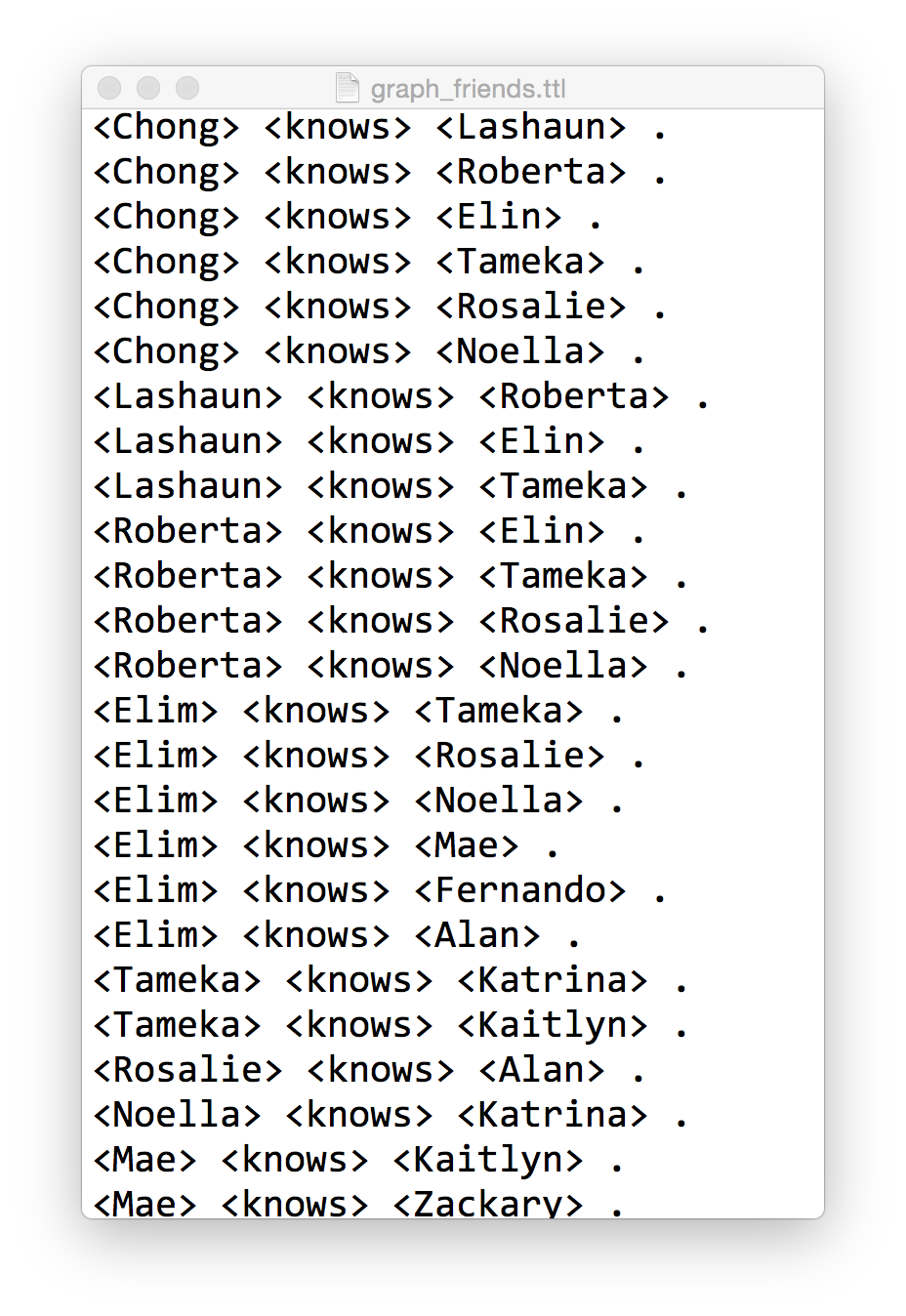
Here is what a sample looks like (graph_friends.ttl) that we can load into SPARQLverse with the above command:

Sample friends graph in Turtle format
Sample friends graph in Turtle format for loading into SPARQLverse graph analytic engine.

It includes 57 specific relationships. The first part of the triple is the Subject, the second is the Predicate/relationship made to the third part, the Object. If you look through the data you’ll see that all the Objects are also defined as Subjects that have other relationships.

Understand the basics here and you’ve got Triples almost mastered.

Note: This is an overly simplistic example, but not totally unrealistic.  We don’t use any URIs but we are allowed to fake them here by simply putting angle brackets around them.  In a linked data environment you’d establish your own namespaces and likely link to external SPARQL endpoints or resources with http:// prefixes.  Now that starts to make your eyes crossed.

Quick Visualisation

As an aside, pull the sample data into Gephi to visualise it and you’ll see the intertwining relationships are not intuitive and would be a challenge to understand using a SQL relational approach.

Friends graph sample viewed in Gephi

What is the Density of the Social Network?

Back to the SPARQL tips page…

What is Graph Density?

Graph density represents how interconnected all entities in the graph are.  They are  a sort of ratio between the total number of connected nodes over maximum number of potential edges.  The value ranges from 0 to 1 – with 0 being a total disconnected graph (not sure if that is technically a graph) with no interconnections between nodes.  And 1 representing a high density graph where all nodes connect to all other nodes.

Here we use a SPARQL query to compute graph density, using the sample dataset above, run from the command line. (Note that I use “?knows” as a predicate when I really want to use “<knows>” but wordpress is not displaying that properly):

$ isbx -c "
 SELECT (?nrEdges/(?nrNodes *(?nrNodes - 1.0)) AS ?graphDensity)
 FROM <graphname>
 WHERE {
  { SELECT (COUNT (*) AS ?nrEdges) (COUNT (DISTINCT ?person) AS ?nrNodes)
    WHERE { ?person ?knows ?anotherPerson . }
   }
 }
"
graphDensity
-------------
0.150000

I changed the example “tips” query to use a different graph name (mygraph) and a different relationship name (knows).  The sub-query in the WHERE clause first counts up the number of edges/relationships and counts the distinct number of nodes as well.  Then the primary query compares that number of edges to nodes.

Let’s break that down into its detail…

Compute the number of unique nodes in the graph

$ isbx -c "SELECT (count (distinct ?person) as ?nrNodes)
> FROM <graphname> WHERE { ?person ?knows ?anotherPerson .}"
nrNodes
--------
20

This tells us that there are 20 people as Subjects in the graph.  Therefore, a maximum number of edges between all people would be 20² (we’ll use only 20×19 as a person might not link to themselves in this example).

Compute the number of edges in the graph

$ isbx -c "SELECT (count (*) as ?nrEdges)
FROM <graphname> WHERE { ?person ?knows ?anotherPerson .}"
nrEdges
--------
57

Total edges is 57.  Do the quick math and see that the ratio is then:

57 / (20 x 19)
= 57 / 380
= 0.149...

Challenge: Inverse Relationships in SPARQL

In some graphs you may not have all the people in the Object position (third part of triple) initialised as Subjects – and their names only show up when someone else defines a relationship to them.

In that case, your density from this query will under-report.  I leave it as an exercise to the reader to figure out how to use SPARQL to do an optional inverse relationship in the sub-query WHERE clause.  Ping me if you want some tips on that.

Future Post

In a future post I’ll walk through some of other graph query examples using SPARQL such as:

  • Who has the most friends who know each other?
  • What is the size of a person’s network?

What else is important to you?  Let me know!


SPARQLverse is part of the Actian Analytics Platform – providing Big Data solutions that are hyper performance with ultimate scalability. Our SQL in Hadoop is the fastest available and runs truly in Hadoop 100%.

Data Sharing Saved My Life – or How an Insurer Reduced My Healthcare Claim Costs

It’s not every day that you receive snail mail with life-changing information in it, but when it does come, it can come from the unlikeliest sources.

Healthcare data shown in a list of bio sample test results
My initial test results showing problems with the Liver

A year ago, when doing a simple change of health insurance vendors, I had to give the requisite blood sample.  I knew the drill… nurse comes to the house, takes blood, a month later I get new insurance documents in the mail.

But this time the package included something new: the results of my tests.

The report was a list of 13 metrics and their values, including a brief description about what they meant and what my scores should be.  One in particular was out of the norm.  My ALT score, which helps measure liver malfunction, was about 50% higher than the expected range.

Simple Data Can Be Valuable

Here is the key point: I then followed up with my family doctor, with data in hand.  I did not have to wait to see symptoms of a systemic issue and get him to figure it out. We had a number, right there, in black and white. Something was wrong.

Naturally, I had a follow up test to see if it was just a blip.  However, my second test showed even worse results, twice as high in fact!  This lead to an ultrasound and more follow up tests.

In the end, I had (non-alcoholic) Fatty Liver Disease.  Most commonly seen in alcoholics, it was a surprise as I don’t drink.  It was solely due to my diet and the weight I had put on over several years.

It was a breaking point for my system and the data was a big red flag calling me to change before it was too late.

Wellness FX chart of ALT
A chart showing some of my earlier tests – loaded into WellnessFX.com for visualisation.

Not impressed with my weight nor all my other scores, I made simple but dramatic changes to improve my health.*  Changes were so dramatic that my healthcare provider was very curious about my methods.

By only making changes to my diet I was able to get my numbers to a healthy level in just a few months.  In the process I lost 46 pounds in 8 months and recovered from various other symptoms.  The pending train wreck is over.

Long Term Value in Sharing Healthcare Data

It’s been one year this week, so I’m celebrating and it is thanks to Manulife or whoever does their lab tests, for taking the initiative to send me my lab results.

It doesn’t take long to see the business value in doing so, does it?   I took action on the information and now I’m healthier than I have been in almost 20 years.  I have fewer health issues, will use their systems less, will cost them less money, etc.

Ideally it benefits the group plan I’m in too as a lower cost user of the system.  I hope both insurers and employers take this to heart and follow suit to give the data their people need to make life changing and cost reducing decisions like this.

One final thought.. how many people are taking these tests right now?  Just imagine what you could do with a bit of data analysis of their results.  Taking these types of test results, companies could be making health predictions for their customers and health professionals to review.  That’s why I’m jumping onto “biohacking” sites like WellnessFX.com to track all my scores these days and to get expert advice on next steps or access to additional services.

I’m so happy with any data sharing, but why give me just the raw data when I still have to interpret it?  I took some initiative to act on the results, but what if I had needed more incentive?  If I had been told “Lower your ALT or your premiums will be 5% higher” I would have appreciated that.

What’s your price?  If your doctor or insurer said “do this and save $100” – would you do it?  What if they laid the data out before you and showed you where your quality of life was headed, would it make a difference to you?

I’m glad I had this opportunity to improve my health, but at this point I just say thanks for the data … and pass the salad please!

Tyler


* I transitioned to a Whole Food – Plant Based diet (read Eat to Live and The China Study).  You can read more about the massive amounts of nutrition science coming out every year at NutritionFacts.org or read research papers yourself.

Analytics Dashboard – Kibana 3 – a few short quick tips

Video no longer available on YouTube: Analytics Dashboard - Kibana 3 - a few short quick tips

After you’ve loaded log files into elasticsearch you can start to visualize them using the Kibana web app and build your own dashboard. While using Kibana for a week or so, I found it tricky to find the docs or tutorials to get me up to speed quickly with some of the more advanced/hidden features.

In this Kibana dashboard video:

  1. build TopN automated classification queries
  2. view the TopN values of a particular column from the table panel
  3. manually create multiple queries to appear as series in your charts

From zero to HDFS in 60 min.

(Okay, so you can be up and running quicker if you have a better internet connection than me.)

Want to get your hands dirty with Hadoop related technologies but don’t have time to waste?  I’ve spent way too much time trying to get HBase, for example, running on my Macbook with Brew and wish I had just tried this Virtualbox approach before.

In this short post I show how easy it was for me to get an NFS share mounted on OSX – so I could transparently and simply copy files on HDFS without needing any special tools.   Here are the details…

Hortonworks Sandbox is an excellent virtual machine file, that’s primed and loaded with all the tools you would want to try out.  Best of all, it’s free and a simple (meh) 2.5GB download.  Virtualbox, VMWare and Hyper-V versions are all available.

Once I launched it, I had access to a simple web console, showing me all the varied apps I have running.

HDP main web console

Here I enabled Ambari and was able to access that dashboard right away.  (Some tutorials say you have to reboot the VM, but I didn’t have to.)

HDP Ambari dashboard

The first thing I wanted to do was enable file access via NFS.  You read that right – I had heard earlier today that Hortonworks Data Platform (HDP) supported NFS right out of the box.  To be fair, I don’t know what others are doing, so maybe this is old news, but it was good news for me.

So using various configuration windows via Ambari, I went through a tutorial for configuring NFS capabilities.  However, to my joy, I found that all the configuration changes I needed to make were already made by default!  So, NFS by default sounded good to me.

After switching Virtualbox from NAT networking to Bridged mode, I then told OSX to mount the drive.  Et voila!

Mounting NFS share from HDP HDFS on OSX


So I’m just getting started with using this Sandbox environment but it was definitely a timesaver for setting up a development environment.

I’ll want to jump into testing HBase with some other work I’m doing, but I may also get tempted into trying various other apps they’ve packaged neatly into this distribution.. when I have some spare time that is. 😉

WordPress Appliance - Powered by TurnKey Linux